Rclone mount settings for 10Gbps LAN speeds (webdav)?

What is the problem you are having with rclone?

I have a 10G LAN connection with my server, and am struggling to get the 1GiB/s download speeds consistently.

I have an rclone mount as my network storage solution. On default settings, I get a consistent ~600MiB/s download.

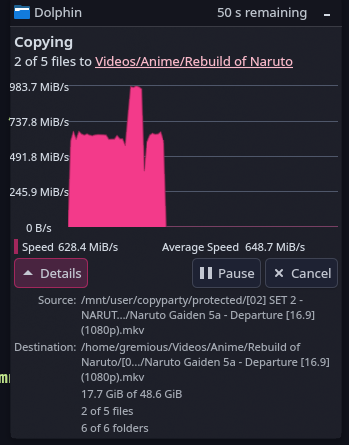
It should be possible, as rclone copy does it, and as I spent two hours fiddling with the config numbers randomly, I do sometimes peak at that speed, but it either drops and peaks wildly, or starts at 1GiB/s for a solid 10 seconds before dropping down gradually over time.

But I just cannot for the life of me find consistent configuration to just hit ~1GiB/s for the whole download.

My test data is a folder of anime movies (5 files, each between 6 and 13 Gb in size).

Perhaps someone here already has something similar configured, and can share their settings?

Run the command 'rclone version' and share the full output of the command.

rclone v1.71.2
- os/version: endeavouros (64 bit)
- os/kernel: 6.12.55-1-lts (x86_64)
- os/type: linux
- os/arch: amd64
- go/version: go1.25.3 X:nodwarf5
- go/linking: dynamic
- go/tags: none

Which cloud storage system are you using? (eg Google Drive)

webdav?

The command you were trying to run

rclone mount --vfs-cache-mode writes --dir-cache-time 5s --no-check-certificate --vfs-read-chunk-streams 8 --vfs-read-chunk-size 32M --vfs-read-chunk-size-limit 0 --transfers 12 -v gremy-copyparty-local: /mnt/user/copyparty

Then I go to /mnt/user/copyparty and I copy-paste the test folder with dolphin.

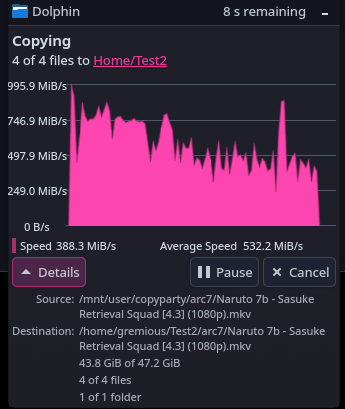
Output:

You can see it reached 10Gib/s there for a second, too.
Please run 'rclone config redacted' and share the full output. If you get command not found, please make sure to update rclone.

[gremy-copyparty-local]
type = webdav
vendor = owncloud
pacer_min_sleep = 0.01ms
user = XXX
pass = XXX
url = https://192.168.1.130:3923/gremious

A log from the command that you were trying to run with the -vv flag

rclone-log.txt (6.9 MB)

Server-side nginx config if relevant:

upstream cpp_uds {
    # there must be at least one unix-group which both
    # nginx and copyparty is a member of; if that group is
    # "www-data" then run copyparty with the following args:
    # -i unix:770:www-data:/dev/shm/party.sock

    server unix:/dev/shm/party.sock fail_timeout=1s;
    keepalive 1;
}

server {
    listen 192.168.1.130:3923 ssl;
    listen 443 ssl;
    # listen [::]:443 ssl;

    server_name data.gremy.co.uk;
    ssl_certificate /etc/letsencrypt/live/gremy.co.uk/fullchain.pem;
    ssl_certificate_key /etc/letsencrypt/live/gremy.co.uk/privkey.pem;

    # default client_max_body_size (1M) blocks uploads larger than 256 MiB
    client_max_body_size 1024M;
    client_header_timeout 610m;
    client_body_timeout 610m;
    send_timeout 610m;


    # uncomment the following line to reject non-cloudflare connections, ensuring client IPs cannot be spoofed:
    #include /etc/nginx/cloudflare-only.conf;

    location / {
        proxy_pass http://cpp_uds;
        proxy_redirect off;
        # disable buffering (next 4 lines)
        proxy_http_version 1.1;
        client_max_body_size 0;
        proxy_buffering off;
        proxy_request_buffering off;
        # improve download speed from 600 to 1500 MiB/s
        proxy_buffers 32 8k;
        proxy_buffer_size 16k;
        proxy_busy_buffers_size 24k;

        proxy_set_header   Connection        "Keep-Alive";
        proxy_set_header   Host              $host;
        proxy_set_header   X-Real-IP         $remote_addr;
        proxy_set_header   X-Forwarded-Proto $scheme;
        proxy_set_header   X-Forwarded-For   $proxy_add_x_forwarded_for;
        # NOTE: with cloudflare you want this X-Forwarded-For instead:
        #proxy_set_header   X-Forwarded-For   $http_cf_connecting_ip;
    }
}

welcome to the forum,

have you tested other webdav copy tools, what are the results are compared to rclone?


fwiw, might test rclone copy instead of rclone mount

welcome to the forum,

Thank you !


Thanks yeah, actually, rclone copy reports a speed of ~1.077 GiB/s for the whole download as expected:

❯ rclone copy --no-check-certificate --progress gremy-copyparty-local: '/home/gremious/Videos/'
Transferred:       48.612 GiB / 48.612 GiB, 100%, 968.676 MiB/s, ETA 0s
Checks:                 0 / 0, -, Listed 50
Transferred:           11 / 11, 100%
Elapsed time:        47.0s

Unfortunately I’ve been wanting to mount this so that it’s my de-facto access point into my network storage..


have you tested other webdav copy tools, what are the results are compared to rclone?

I have not, I’m afraid I do not know any. If it’d be useful to compare some specific one, do tell

A thread from a while ago suggests it might be a multi-thread difference thing:

But rclone copy --multi-thread-streams 0 still pulls 1GiB/s for me no problem.

That and settings --multi-thread-streams=12with cache mode writes did not change:

rclone mount --vfs-cache-mode writes --dir-cache-time 5s --no-check-certificate --multi-thread-streams=12  gremy-copyparty-local: /mnt/user/copyparty

Is still at ~600 MiB/s

I'm not sure if this is the main reason, but it's worth mentioning that the Nginx http proxy is a limiting factor here. I suggest you connect to the WebDAV server directly.

Good thought, thank you

But, in retrospect.. I actually am already doing that, my config is using the LAN IP directly, which should work.

I should not have included the nginx config, my bad. You can ignore it.

You'll find the speeds a bit slower when reading through the mount point, as FUSE adds extra overhead.
Another thing to think about is the write speed of the disk you're downloading to.

What is the performance like without this?

You could try removing all the flags from rclone mount and adding them back one at a time.

You might find --vfs-cache-mode off is actually quicker.

Found the time to test this finally, sorry I took a hot minute:

1-200 MiB/s slower.

You might find --vfs-cache-mode off is actually quicker.

It was about 50 is MiB/s faster when running without any of the fancy flags.

It was very hard to tell when running with them, don’t think it made much of a difference. I’ll keep it off just in case though.

You could try removing all the flags from rclone mount and adding them back one at a time.

rclone mount --no-check-certificate --vfs-cache-mode off --vfs-read-chunk-streams 8 --vfs-read-chunk-size 8M -v gremy-copyparty-local: /mnt/user/copyparty

Seems to be the minimum required to get a solid 650MiB/s, which is better than the 450-500 ish with no flags.

Still unfortunately do not know how to push it past that.

Another thing to think about is the write speed of the disk you're downloading to.

rclone copy does 1GiB/s so drive should be ok

You'll find the speeds a bit slower when reading through the mount point, as FUSE adds extra overhead.

Yeah, would be very sad day if the FUSE driver tanks 400MiB/s or otherwise just has speed limitations. Hoping that it’s not the case..

@ncw Will Rclone support fuse passthrough?

An improvement is good!

Did you try doubling, halving the streams and buffer sizes to find the peak of those?

Might be worth trying rclone mount2 also. Some people say it is faster than rclone mount.

If the libraries rclone uses supports it then we could use fuse pass through for the VFS cache file which would undoubtedly speed things up.

1 Like

Hello again =)

Finally found some time to test all of this, here’s my results.


From 650MiB/s → ~715MiB/s just like that. Great!


Lesse:

The command will look like this and I will only change the numbers

rclone mount2 --no-check-certificate --vfs-cache-mode off --vfs-read-chunk-streams 4 --vfs-read-chunk-size 8M -v gremy-copyparty-local: /mnt/user/copyparty
Summary

Default: Streams: 0 Size: 128M: ~300MiB/s

Streams: 2 Size: 128M: ~625MiB/s

Streams: 3 Size: 128M: ~705MiB/s

Streams: 4 Size: 128M: ~700MiB/s

Streams: 6 Size: 128M: ~690MiB/s (by jumping wildly between 400 and 700+)

Streams: 8 Size: 128M: ~690MiB/s


Going with 3 since it was the best:

Streams: 3 Size: 8M: ~680MiB/s

Streams: 3 Size: 16M: ~690MiB/s

Streams: 3 Size: 32M: ~700MiB/s

Streams: 3 Size: 64M: ~705MiB/s

Streams: 3 Size: 128M: ~695MiB/s

(Already tried this above, default value) Streams: 3 Size: 128M: ~705MiB/s

Streams: 3 Size: 256M: ~670MiB/s

Streams: 3 Size: 512M: ~645MiB/s


Then I found that 4 streams was actually a bit better for some values, so I used that:

Increasing one then the other:

Streams: 4 Size: 4M: ~690MiB/s

:star:Streams: 4 Size: 8M: ~720MiB/s

Streams: 4 Size: 16M: ~714MiB/s

Streams: 4 Size: 32M: ~705MiB/s

Streams: 5 Size: 8M: ~707MiB/s

Streams: 5 Size: 32M: ~714MiB/s

Streams: 5 Size: 64M: ~707MiB/s

Streams: 5 Size: 128M: ~695MiB/s

Streams: 8 Size: 8M: ~703MiB/s

Streams: 4 Size: 8M: ~710MiB/s

(Few big chunks Streams: 4 Size: 1024M Limit: 1024M: ~550MiB/s (It loses speed I think when the transfer goes on to the next file, which makes sense)

(A billion small chunks) Streams: 32 Size: 8M Size Limit: 32M: ~680MiB/s


Adding some more settings into the mix:

Streams: 4 Size: 8M but with cache-mode Writes and –transfers 4: ~713MiB/s

So, overall, it seems that Streams: 4, Size: 8M: gives me the biggest speed of ~720MiB/s

So close to 1 GiB/s but not quite there..


If anyone else ever stumbles on this and wants to test, keep in mind that it’ll load the transfers into ram and then you won’t be able to see slow downs between changes.

So if you’re transferring the same file over and over again, you need to keep doing

sudo sync; echo 1 | sudo tee /proc/sys/vm/drop_caches

between attempts. This will probably take a hot min the first time around but subsequent runs should be quick.

May also be worth trying --direct-io on the mount.

What kind of CPU usage are you seeing with the mount at max speeds?

Perhaps looking at a CPU profile for the duration of the read from the mount will provide further details about any potential issues. Instructions here: Remote Control / API

Another option to identify whether it’s the network or the mount is trying a mount of a local folder and copying from that to another folder.

1 Like

That was a bit slower, at around 550MiB/s, at least with the previous 4@8M settings.


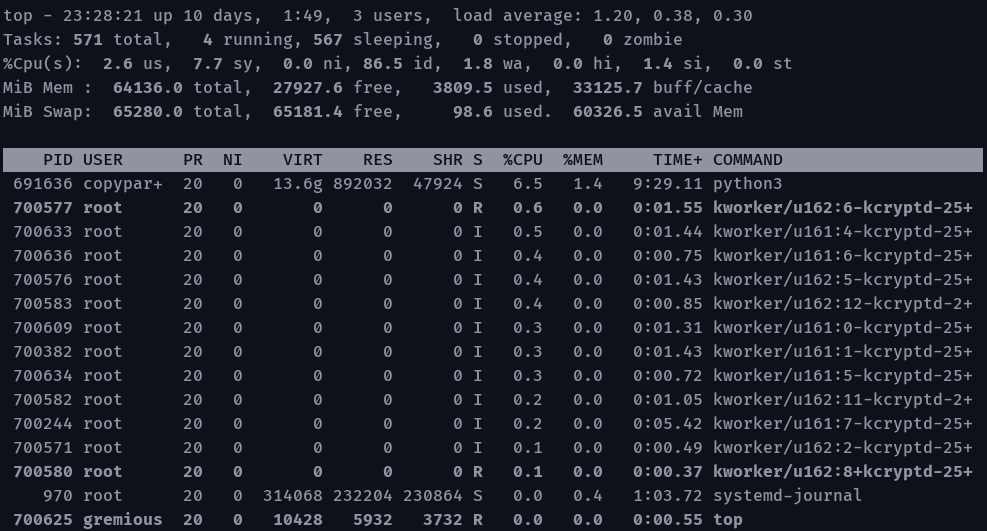
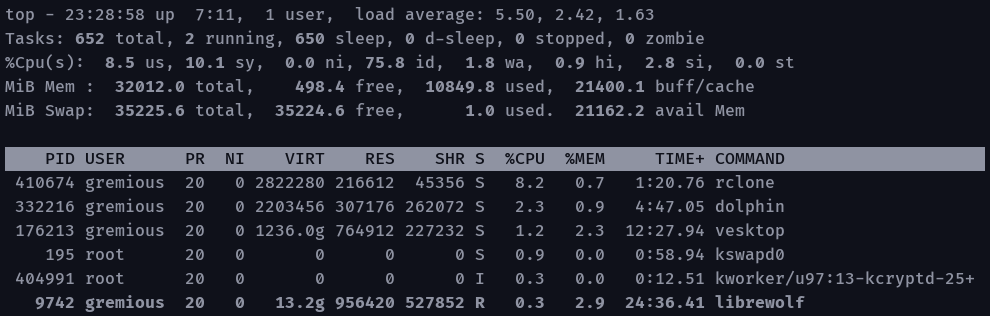
Server: about 6%

Client: About 8%

Wish I could just “Throw more CPU at it”


Hey that’s a neat thing to learn, thanks.

As is probably expected, most time is spent in 2 places: md5 hashes and “go-fuse”

pprof.log (6.8 KB)

However, there’s also a good amount (assuming cumulative amount is what I’m supposed to look at) in fshttp.(*timeoutConn) which sounds a bit suspect.


That’s a pretty good idea, actually!

And… It does, in fact, not reach 1GiB/s speeds, being at around the same 750MiB/s, with some pretty harsh drops here and there.

Now, this also made me think to test “literally just copy-pasting the file on disk”, which for the record, did work fine, and reached 1GiB/s. (It honestly freaked me out at first cause it took a second to reach those speeds, and my ssd is rather full. But we’re ok on that phew.)

So I think this pretty much confirms that it’s fuse stuff, and up to either rclone or go.fuse library to optimize?

You should be able to get a speedup after adding --no-checksum and possibly also try --async-read=false (even though I don’t think disabling async-read will make a difference here).

Once you share the pprof after the above 2 changes, there may be other things to try. Also, please share the actual profile rather than just the top output of it. You can get it via:

curl "http://127.0.0.1:5572/debug/pprof/profile?seconds=3599" > cpu.pprof

Run the command when the transfer starts and adjust the value of seconds from 3599 to the average time taken for the copy plus some buffer.

Yeah, no-checksum is at least an extra 50MiB/s, going up to about 800. But... I kind of would prefer to keep them on, if possible? It would be nice to have the safety checks if this is to be my main network storage solution.


Tried, I don’t think that made a difference yeah


Ah sorry, it’s just that the forum complained about not being authorize to upload anything except an image or .log file, so I though I’d make one.

Well, I’ve ran the command as requested, so just change these extension back to .pprof. (And also, thank you very much for having a look at this, it’s very appreciated).

Profile of the original command:

cpu_original.txt (55.0 KB)

Profile after adding --no-checksum and --async-read=false:

cpu_new.txt (39.3 KB)

They both profiled for for 85 seconds, with the second command taking a good 5-10 seconds less, hopefully that’s fine.

To determine whether this is an actual FUSE limitation of single-threaded transfers vs. an issue with how we use it, it would be helpful if you could also try a different FUSE-based FS like GitHub - trapexit/mergerfs: a featureful union filesystem with a local-to-local copy.

Some performance tips for it: Tweaking Performance - mergerfs

Make sure to always try with passthrough disabled because even though it may give you good performance for local transfers, it doesn’t work for network transfers.

From the pprof with no-checksum, it doesn’t seem like FUSE is actually the bottleneck and instead it is the network I/O.

What kind of CPU usage and speeds do you see when doing a rclone copy with multi-thread-streams set to 0?

Can you also share a pprof of the same? It may be a little tricky to get a pprof of that but if you want to, you should be able to get one via RC if you copy using the operations/copyfile command rather than rclone copy.

So, I’ve fiddled with mergerfs, trying to mount a folder on this PC (client machine) and move files from it, to a different folder on the same machine.

And generally, it actually gives me around the same 600/700 MiB/s speeds.

I tried with both with passthrough.io=rw and without (default is off) and the result was samey either way (passthrough was more jumpy). Regardless, I could not get it to go 1G.

This is without as requested, and me trying to give it more cpu:

sudo mergerfs -o cache.files=off,category.create=pfrd,func.getattr=newest,dropcacheonclose=false,,parallel-direct-writes=true,process-thread-count=2,read-thread-count=2,process-thread-queue-depth=4 /home/gremious/Test /mnt/user/copyparty/

with default recommended settings as well e.g.

sudo mergerfs -o cache.files=off,category.create=pfrd,func.getattr=newest,dropcacheonclose=false, /home/gremious/Test /mnt/user/copyparty/

It’s pretty much the same, maybe a tid bit slower.

The only thing that passthrough.io=rw changed is that it would start at 1G for like, a second.

In both cases, it gradually falls off.

Writing in or out of the folder is about the same.


That is good news if true


(i changed the names of the mounts in the meantime, you can ignore that, it’s the same setup)

rclone copy --no-check-certificate --progress --multi-thread-streams=0 copyparty-local-shrimp:/protected/set1/arc7 /home/gremious/Test/arc7

Ok so both with and without multi-thread-streams=0, we’re looking at:

Speeds: ~1.090 GiB/s,

CPU usage, on the server, from top, for that process: 4-500% or 12-15% of total capacity.

Notably that is a bit more than the ~ 250% / 6% when mounting.


Can do, will do:

Since I’m copying a directory with multiple files I used sync/copy not operations/copyfile

For reference:

Terminal split 1:

rclone rcd --rc-no-auth --no-check-certificate

Terminal split 2:

rclone rc sync/copy srcFs=copyparty-local-shrimp:/protected/set1/arc7 dstFs=/home/gremious/Test/arc7

Terminal split 3 (click as fast as possible after starting the copy)

curl "http://127.0.0.1:5572/debug/pprof/profile?seconds=50" > cpu_fancy.pprof

cpu_fancy.txt (49.2 KB)

Took about 45 seconds as opposed to the mount’s ~75 so this should be at the good speed.


Definitely does feel like the rclone copy is doing something that the mount copy is not.

Can you also try comparing just a single transfer between both rclone copy (with multi-thread-streams=0) vs rclone mount2?