OneDrive write perms for Linux Apps

What is the problem you are having with rclone?

Mounting the OneDrive volume works fine, and the local user can both read and write. What we need is Apps on the system to have write permissions. We have applications and scripts that process files and they need to be able to write back to OneDrive. Permission is always denied no matter what we try.

Run the command 'rclone version' and share the full output of the command.

rclone v1.72.0

  • os/version: centos 7.7.1908 (64 bit)
  • os/kernel: 3.10.0-1062.9.1.el7.x86_64 (x86_64)
  • os/type: linux
  • os/arch: amd64
  • go/version: go1.25.4
  • go/linking: static
  • go/tags: none

Which cloud storage system are you using? (eg Google Drive)

OneDrive Corporate

The command you were trying to run (eg rclone copy /tmp remote:tmp)

rclone mount OneDrive: ~/OneDrive --vfs-cache-mode=writes --allow-other --dir-perms 777

Please run 'rclone config redacted' and share the full output. If you get command not found, please make sure to update rclone.

---OneDrive]
type = onedrive
token = XXX
drive_id = XXX
drive_type = business
### Double check the config for sensitive info before posting publicly

A log from the command that you were trying to run with the -vv flag

2025/12/09 12:00:41 DEBUG : rclone: Version "v1.72.0" starting with parameters ["rclone" "mount" "OneDrive:" "/root/OneDrive" "--vfs-cache-mode=writes" "--allow-other" "--dir-perms" "777" "-vv"]
2025/12/09 12:00:41 DEBUG : Creating backend with remote "OneDrive:"
2025/12/09 12:00:41 DEBUG : Using config file from "/root/.config/rclone/rclone.conf"
2025/12/09 12:00:41 DEBUG : OneDrive: Token expired
2025/12/09 12:00:41 DEBUG : OneDrive: No updated token found in the config file
2025/12/09 12:00:42 DEBUG : OneDrive: Token refresh successful
2025/12/09 12:00:42 DEBUG : Saving config "token" in section "OneDrive" of the config file
2025/12/09 12:00:42 DEBUG : OneDrive: Saved new token in config file
2025/12/09 12:00:42 DEBUG : OneDrive root '': Next delta token is: NDslMjM0OyUyMzE7Mzs4YTQ1ZWIzMy00MTBmLTQ5OGQtOTI4ZS1jMDg5YWYzNjIzMGU7NjM5MDA4OTY0NDI2NjAwMDAwOzE2NDAwMTA1MzI7JTIzOyUyMzslMjMwOyUyMw
2025/12/09 12:00:42 DEBUG : OneDrive root '': vfs cache: root is "/root/.cache/rclone"
2025/12/09 12:00:42 DEBUG : OneDrive root '': vfs cache: data root is "/root/.cache/rclone/vfs/OneDrive"
2025/12/09 12:00:42 DEBUG : OneDrive root '': vfs cache: metadata root is "/root/.cache/rclone/vfsMeta/OneDrive"
2025/12/09 12:00:42 DEBUG : Creating backend with remote ":local,encoding='Slash,Dot',links=false:/root/.cache/rclone/vfs/OneDrive/"
2025/12/09 12:00:42 DEBUG : :local: detected overridden config - adding "{8un-i}" suffix to name
2025/12/09 12:00:42 DEBUG : fs cache: renaming cache item ":local,encoding='Slash,Dot',links=false:/root/.cache/rclone/vfs/OneDrive/" to be canonical ":local{8un-i}:/root/.cache/rclone/vfs/OneDrive"
2025/12/09 12:00:42 DEBUG : Creating backend with remote ":local,encoding='Slash,Dot',links=false:/root/.cache/rclone/vfsMeta/OneDrive/"
2025/12/09 12:00:42 DEBUG : :local: detected overridden config - adding "{8un-i}" suffix to name
2025/12/09 12:00:42 DEBUG : fs cache: renaming cache item ":local,encoding='Slash,Dot',links=false:/root/.cache/rclone/vfsMeta/OneDrive/" to be canonical ":local{8un-i}:/root/.cache/rclone/vfsMeta/OneDrive"
2025/12/09 12:00:42 INFO  : OneDrive root '': vfs cache: cleaned: objects 0 (was 0) in use 0, to upload 0, uploading 0, total size 0 (was 0)
2025/12/09 12:00:42 DEBUG : OneDrive root '': Mounting on "/root/OneDrive"
2025/12/09 12:00:42 DEBUG : Root: 
2025/12/09 12:00:42 DEBUG : >Root: node=/, err=<nil>
2025/12/09 12:00:42 DEBUG : /: Lookup: name=".Trash"
2025/12/09 12:00:43 DEBUG : Paul @ Save On Everything: OneNote file not shown in directory listing
2025/12/09 12:00:43 DEBUG : /: >Lookup: node=.Trash/, err=<nil>
2025/12/09 12:00:43 DEBUG : .Trash/: Attr: 
2025/12/09 12:00:43 DEBUG : .Trash/: >Attr: attr=valid=1s ino=0 size=0 mode=drwxr-xr-x, err=<nil>
2025/12/09 12:00:43 DEBUG : .Trash/: Lookup: name="0"
2025/12/09 12:00:43 DEBUG : /: Lookup: name="BDMV"
2025/12/09 12:00:43 DEBUG : /: >Lookup: node=<nil>, err=no such file or directory
2025/12/09 12:00:43 DEBUG : /: Lookup: name=".xdg-volume-info"
2025/12/09 12:00:43 DEBUG : /: >Lookup: node=<nil>, err=no such file or directory
2025/12/09 12:00:43 DEBUG : /: Lookup: name="autorun.inf"
2025/12/09 12:00:43 DEBUG : /: >Lookup: node=<nil>, err=no such file or directory
2025/12/09 12:00:43 DEBUG : /: ReadDirAll: 
2025/12/09 12:00:43 DEBUG : .Trash/: >Lookup: node=<nil>, err=no such file or directory
2025/12/09 12:00:43 DEBUG : /: >ReadDirAll: item=240, err=<nil>
2025/12/09 12:00:43 DEBUG : /: Lookup: name=".Trash-0"
2025/12/09 12:00:43 DEBUG : /: >Lookup: node=<nil>, err=no such file or directory
2025/12/09 12:00:43 DEBUG : /: ReadDirAll: 
2025/12/09 12:00:43 DEBUG : /: >ReadDirAll: item=240, err=<nil>
2025/12/09 12:00:43 DEBUG : /: ReadDirAll: 
2025/12/09 12:00:43 DEBUG : /: >ReadDirAll: item=240, err=<nil>
2025/12/09 12:00:43 DEBUG : /: ReadDirAll: 
2025/12/09 12:00:43 DEBUG : /: >ReadDirAll: item=240, err=<nil>
2025/12/09 12:00:43 DEBUG : /: ReadDirAll: 
2025/12/09 12:00:43 DEBUG : /: >ReadDirAll: item=240, err=<nil>
2025/12/09 12:00:43 DEBUG : /: ReadDirAll: 
2025/12/09 12:00:43 DEBUG : /: >ReadDirAll: item=240, err=<nil>
2025/12/09 12:00:43 DEBUG : /: ReadDirAll: 
2025/12/09 12:00:43 DEBUG : /: >ReadDirAll: item=240, err=<nil>
2025/12/09 12:00:43 DEBUG : /: ReadDirAll: 
2025/12/09 12:00:43 DEBUG : /: >ReadDirAll: item=240, err=<nil>
2025/12/09 12:00:43 DEBUG : /: ReadDirAll: 
2025/12/09 12:00:43 DEBUG : /: >ReadDirAll: item=240, err=<nil>
2025/12/09 12:00:43 DEBUG : /: ReadDirAll: 
2025/12/09 12:00:43 DEBUG : /: >ReadDirAll: item=240, err=<nil>
2025/12/09 12:00:43 DEBUG : /: ReadDirAll: 
2025/12/09 12:00:43 DEBUG : /: >ReadDirAll: item=240, err=<nil>
2025/12/09 12:00:43 DEBUG : /: ReadDirAll: 
2025/12/09 12:00:43 DEBUG : /: >ReadDirAll: item=240, err=<nil>
2025/12/09 12:00:43 DEBUG : /: ReadDirAll: 
2025/12/09 12:00:43 DEBUG : /: >ReadDirAll: item=240, err=<nil>
2025/12/09 12:00:43 DEBUG : /: ReadDirAll: 
2025/12/09 12:00:43 DEBUG : /: >ReadDirAll: item=240, err=<nil>
2025/12/09 12:00:43 DEBUG : /: ReadDirAll: 
2025/12/09 12:00:43 DEBUG : /: >ReadDirAll: item=240, err=<nil>
2025/12/09 12:00:43 DEBUG : /: ReadDirAll: 
2025/12/09 12:00:43 DEBUG : /: >ReadDirAll: item=240, err=<nil>
2025/12/09 12:00:43 DEBUG : /: ReadDirAll: 
2025/12/09 12:00:43 DEBUG : /: >ReadDirAll: item=240, err=<nil>
2025/12/09 12:00:43 DEBUG : /: ReadDirAll: 
2025/12/09 12:00:43 DEBUG : /: >ReadDirAll: item=240, err=<nil>
2025/12/09 12:00:43 DEBUG : /: ReadDirAll: 
2025/12/09 12:00:43 DEBUG : /: >ReadDirAll: item=240, err=<nil>
2025/12/09 12:00:43 DEBUG : /: ReadDirAll: 
2025/12/09 12:00:43 DEBUG : /: >ReadDirAll: item=240, err=<nil>
2025/12/09 12:00:43 DEBUG : /: ReadDirAll: 
2025/12/09 12:00:43 DEBUG : /: >ReadDirAll: item=240, err=<nil>
2025/12/09 12:00:43 DEBUG : /: ReadDirAll: 
2025/12/09 12:00:43 DEBUG : /: >ReadDirAll: item=240, err=<nil>
2025/12/09 12:00:43 DEBUG : /: ReadDirAll: 
2025/12/09 12:00:43 DEBUG : /: >ReadDirAll: item=240, err=<nil>
2025/12/09 12:00:43 DEBUG : /: Lookup: name="autorun.inf"
2025/12/09 12:00:43 DEBUG : /: >Lookup: node=<nil>, err=no such file or directory

That’s less about rclone and more about stock Unix/Linux permissions.

Looks like you are mounted in someone’s home directory.

You’d want to check the permissions going up the chain with the user and see what they are.

If you want to share a ls -al on the directories leading up to it, it’s usually pretty easy to spot and figure out.

Thanks for the reply..

Sorry - but I beg to disagree. I can set the permissions for the directory to 777, and I have mounted it in several different places. Once OneDrive mounts (regardless as to where), the permissions are automatically changed and and cannot be altered.

Owner: Read/Write. Group: Read only. Others: Read only

Seeing that this is a corporate OneDrive, that may have something to do with it, but I wouldn’t know what to change.

It would be nice if the creaters of rclone would come up with a tutorial for setting up a corporate OneDrive mount on Linux vs a personal one.

If you don’t want to share, no way to help.

Linux permissions flow and setting that one directory as you did doesn’t solve the permissions issue from other paths.

Happy to help but I can’t see your screen to assist.

I will gladly share whatever it is you feel you need to see. I’m just simply saying that we’ve already mounted this in several different places with the same result. Which includes…

/Network

/mnt

~/user/OneDrive

/ ←- root

So which one did you want to see?

We have other volumes mounted in some of these same directories and can change permissions all day. Once the rclone OneDrive is mounted, if you try to change permissions, they simply ‘snap’ back to what they were previously. rclone won’t let you change them. So I’m thinking it’s something we need to change with the rclone mount command, or something with OneDrive itself…. Both?

As I’ve mentioned I can’t see what you’ve done.

Pick one spot you want to troubleshoot.

At the root is easiest for this purpose.

rclone mount remote: /onedrive or whatever you want to call it.

ls -al / and share the output after it’s mounted.

Cloud remotes have no concept of unix/linux permissions so nothing sticks to them. You can mount them and adjust as a whole.

I just used:

This is setting the file permission on the mount to user and group have the same access and other can read

--umask 002

As part of my mount script along with

This is for allowing users other than the user running rclone access to the mount

--allow-other

My specific use case was that I wanted the user and group of my mount to have read/write and other to only have read. Depending on your goal and what you want to accomplish, you can make 000 for the umask which is read/write for the world.

It depends on what user you are mounting as along with what group that user is in and what groups the other uid/gid are in as well.

When I say it has nothing to do with rclone as you are really just mapping the unix/linux permissions to your rclone mount as the cloud storage itself doesn’t care nor know anything about them.

Take an app and check

id appuser

and see what groups they are in. I made a group for my stuff and put all users requiring access in that custom group.

rclone mount OneDrive: /OneDrive --vfs-cache-mode=writes --allow-other

dr-xr-xr-x.  20 root root 4096 Dec  9 16:42 ./
dr-xr-xr-x.  20 root root 4096 Dec  9 16:42 ../
-rw-r--r--    1 root root    0 Oct  8  2019 .autorelabel
lrwxrwxrwx    1 root root    7 Oct 17  2019 bin -> usr/bin/
dr-xr-xr-x.   6 root root 3072 Jul 18  2024 boot/
drwxr-xr-x   20 root root 3260 Dec  7 15:25 dev/
drwxr-xr-x. 141 root root 8192 Dec  9 09:26 etc/
drwxr-xr-x.  13 root root 4096 Nov  2  2023 home/
lrwxrwxrwx    1 root root    7 Oct 17  2019 lib -> usr/lib/
lrwxrwxrwx    1 root root    9 Oct 17  2019 lib64 -> usr/lib64/
drwxr-xr-x.   2 root root    6 Apr 11  2018 media/
drwxr-xr-x.   7 root root   70 Dec  7 15:24 mnt/
drwxr-xr-x    9 root root 4096 Dec  7 15:21 Network/
drwxrwxrwx    2 root root    6 Dec  4 12:19 ODTest/
drwxr-xr-x    2 root root    6 Dec  9 16:42 OneDrive/
drwxr-xr-x.   3 root root   15 Apr 11  2018 opt/
dr-xr-xr-x  310 root root    0 Dec  7 15:25 proc/
dr-xr-x---.  27 root root 4096 Dec  9 16:45 root/
drwxr-xr-x   39 root root 1200 Dec  7 15:41 run/
lrwxrwxrwx    1 root root    8 Oct 17  2019 sbin -> usr/sbin/
drwxr-xr-x.   2 root root    6 Apr 11  2018 srv/
lrwxrwxrwx.   1 root root   13 Oct  8  2019 symlnks -> /home/symlnks/
dr-xr-xr-x   13 root root    0 Dec  7 15:25 sys/
drwxrwxrwt.  16 root root 4096 Dec  9 16:45 tmp/
drwxr-xr-x.  14 root root 4096 Oct 17  2019 usr/
drwxr-xr-x.  23 root root 4096 Oct 17  2019 var/

So based on that, only the root user can write to /OneDrive.

What are you app users? Are they root? Are they something else? Do you want to open it up to the world? Do you want to use groups? How do you want to setup the permissions?

We would like owner and group to have read/write, and others to read only. chown and chmod do not return an error, but the permissions are not updated. At least not after rclone has mounted OneDrive. Regardless of what they were set before the mount.

Did you mount it and then run the ls -al?

When you mount, it should make it look like my bottom screenshot:

What I sent you was with ls -laF. I like to see hidden stuff as well.

Have you mounted the drive before running the ls -al?

I don’t need -F as part of what I am looking for as I just want to confirm the drive is mounted and then you ran the rclone ls because the output doesn’t seem to show that.

Before mount

drwxrwxr-x 2 twistadm dalim 6 Dec 9 16:42 OneDrive/

After mount

drwxr-xr-x 1 root root 0 Dec 10 10:38 OneDrive/

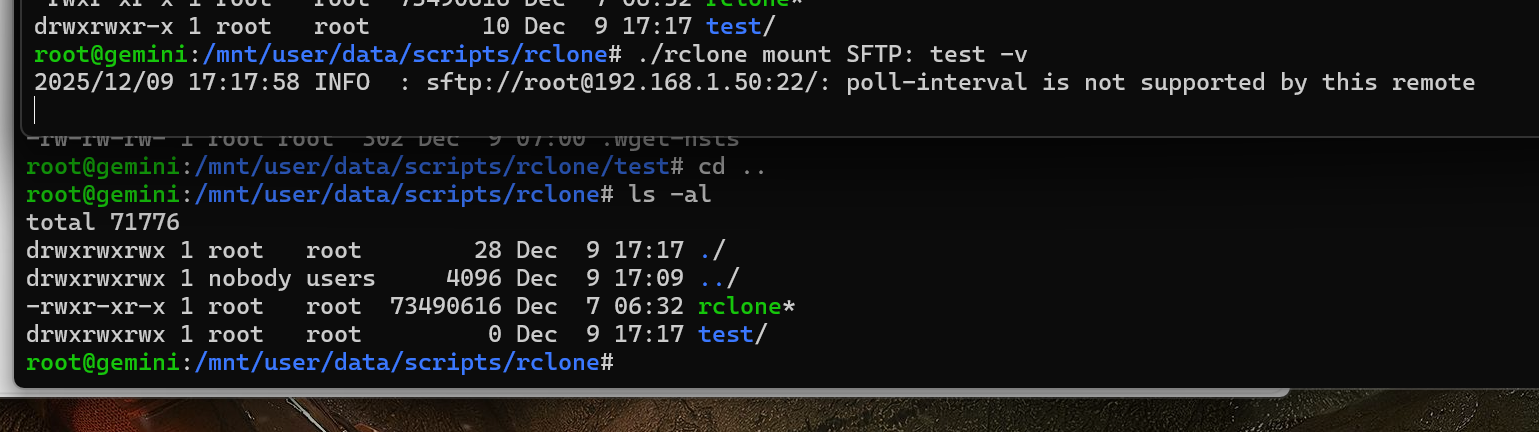
Interesting as I repeat the same thing and get different permissions:

root@gemini:/mnt/user/data/scripts/rclone# ls -al
total 71776
drwxrwxrwx 1 root root 28 Dec 9 17:17 ./
drwxrwxrwx 1 nobody users 4096 Dec 9 17:09 ../
-rwxr-xr-x 1 root root 73490616 Dec 7 06:32 rclone*
drwxr--r-- 1 nobody users 10 Dec 9 17:17 test/
root@gemini:/mnt/user/data/scripts/rclone# rclone mount SFTP: test -v
2025/12/10 11:00:51 INFO : sftp://root@192.168.1.50:22/: poll-interval is not supported by this remote
^Z
[1]+ Stopped rclone mount SFTP: test -v
root@gemini:/mnt/user/data/scripts/rclone# bg
[1]+ rclone mount SFTP: test -v &
root@gemini:/mnt/user/data/scripts/rclone# ls -al
total 71776
drwxrwxrwx 1 root root 28 Dec 9 17:17 ./
drwxrwxrwx 1 nobody users 4096 Dec 9 17:09 ../
-rwxr-xr-x 1 root root 73490616 Dec 7 06:32 rclone*
drwxrwxrwx 1 root root 0 Dec 10 11:00 test/
root@gemini:/mnt/user/data/scripts/rclone# fg
rclone mount SFTP: test -v
^C2025/12/10 11:00:56 INFO : Signal received: interrupt
2025/12/10 11:00:56 ERROR : test: Unmounted rclone mount
2025/12/10 11:00:56 INFO : Exiting...

Mine flips to root as expected as that’s the user I’m running as and I get full permissions on it.

I normally don’t run as root as no need to, but on my Unraid box, I’m limited on options.

Are you able to run the same way I did and share the output? I can spin up a VM with CentOS perhaps and give it a test.

Hmm, that’s a EOL CentOS version too:

CentOS 7 (including version 7.7) reached its official End of Life (EOL) on June 30, 2024

I apologize… I misunderstood you. When you mentioned setting the umask and uid values, I thought you meant for the local POSIX permissions. I didn’t know you could set these with the rclone mount command. Strangely… the gid option doesn’t appear to be valid??

It - appears - to be working now. I’ll be running tests throughout the day to make sure and post any questions I might have.

Thanks for your help!!

Yeah, I just used the umask to set the permissions on the mount area:

felix@centos:/$ ls -al | grep test
drwxrwxr-x. 2 felix felix 6 Dec 10 11:31 test
felix@centos:/$ rclone mount SFTP: /test --umask 022 -v
2025/12/10 11:44:17 INFO : sftp://root@192.168.1.50:22/: poll-interval is not supported by this remote
^Z
[1]+ Stopped rclone mount SFTP: /test --umask 022 -v
felix@centos:/$ bg
[1]+ rclone mount SFTP: /test --umask 022 -v &
felix@centos:/$ ls -al | grep test
drwxr-xr-x. 1 felix felix 0 Dec 10 11:44 test
felix@centos:/$

Did testing through multiple workflows. Everything appears to be working correctly. The only thing I’ve changed is I moved the mount to the /Network directory.

Thanks again.

This topic was automatically closed 30 days after the last reply. New replies are no longer allowed.